Logging into a GPU
When a team’s reservation including GPUs becomes available, the selected Docker container will be loaded onto the selected GPU Server (DGX or Large Memory Node) with the assigned number of GPUs included in the reservation. Then, users may log into their team’s containers running on the GPU Server through SSH. With the SSH proxy setup in place, users can use SSH directly from their local machine to access their containers. Otherwise, users will need to first ssh to the SSH gateway (Accessing Colosseum Resources) and then ssh to the user account within their container.
The base containers provided in Colosseum have only one account, root. This account has a default password of “ChangeMe”. Upon login, users can change the password by running the command ‘passwd’. After the password is changed, use the ‘commit’ feature (Manage Docker Containers) to save a new container image. The next time a reservation is made, use the new container image which will have your new passwords set. A user can create as many accounts as he likes.
The root account is a typical root user for the container. It has access to all the folders and files, including also /share, i.e., the directory linked to the team folder in the NAS.
The hostname convention is <teamname>-<id>.service.colosseum.prod.colosseum.net (example: myteamname-9999.service.colosseum.prod.colosseum.net).
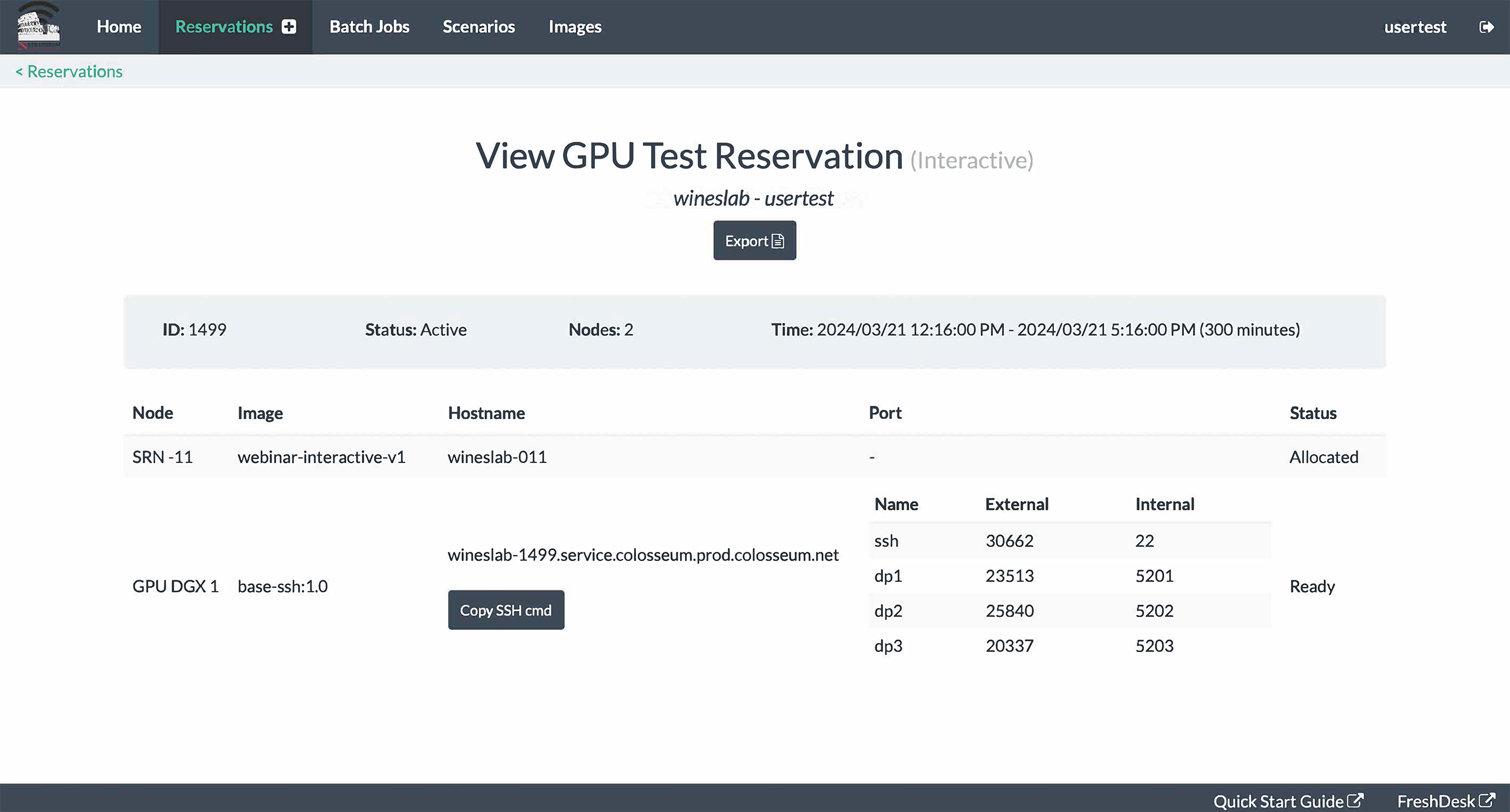
At your scheduled reservation time, SSH into your GPU(s) reservation by specifying the hostname and SSH port. Both these values are assigned when a reservation is created and the containers are up. Hostname and port can be found on the website reservation info page when the nodes’ status is ‘Allocated’ or ‘Ready’.
When a reservation is created, a list of ports is automatically assigned to the Docker container. These ports are displayed in a table in the ‘Port’ column with the following information:
Name. The label of the port which can be:
ssh. The port used to SSH in the container, i.e., the one that should be used as the argument of the -p flag in the ssh command.
dp. (Dynamic Port) These are ports that can be used by external applications to reach the container, e.g., an iperf app from an SRN LXC container of the same reservation.
External. The value of the port to be used from outside to reach the Docker container.
Internal. The value of the port that is mapped inside the Docker container.
The value of the external ports is randomly assigned at the beginning of each reservation, while the internal values always remain the same.
To copy the proper SSH command, including the hostname and SSH port, to the clipboard, users can press the correspondent “Copy SSH cmd” button below the hostname. Note that, the default copied user is “root”, and the user might need to change it, if another user is needed to access the container.
In this example, a user may receive a reservation response indicating that GPU DGX 1 will be assigned to their container (one Docker container for all assigned GPUs). The container will be accessible in the following way:
~$ ssh root@wineslab-1343.service.colosseum.prod.colosseum.net -p 24901
Password:
root@wineslab-1343:~#